

Checkpoints
A checkpoint is a snapshot of your workspace that Dline saves while a task runs. You can see what changed since a checkpoint, and roll back the files, the conversation, or both to it.
How it works: a shadow Git repository
Section titled “How it works: a shadow Git repository”Dline never commits to your project repository. Instead it keeps a separate “shadow” Git repository for each workspace:
| Item | Details |
|---|---|
| Location | <documents-root>/checkpoints/<workspace-path-hash>/.git. <documents-root> defaults to dline inside your system Documents folder and can be overridden with the DLINE_DOCS_DIR environment variable |
| Working tree | The shadow repository’s core.worktree points at your project folder, so it reads and restores your project files directly |
| Commit identity | Commits use a dedicated identity, Dline Checkpoint, with commit signing disabled; your Git user configuration is neither read nor changed |
| Sharing | All tasks in the same workspace share one shadow repository; every checkpoint commit is tagged with the task it belongs to |
Checkpoints therefore do not create commits, branches, or staged changes in your project repository. Restoring a checkpoint does, however, rewrite workspace files by design — read the restore rules below.
When checkpoints are saved
Section titled “When checkpoints are saved”- When a task starts: the first request records a baseline snapshot of the workspace. The first tool that may modify the workspace waits for the baseline; read-only tools can run alongside it.
- After each assistant turn that may modify the workspace: whenever a turn contains a tool outside the read-only list (for example writing a file, replacing text, or running a command), Dline saves a checkpoint. Read-only tools include
read_file,list_files,search_files,list_code_definition_names,find_references,web_search,web_fetch,load_skill,load_workflow, the browser, and question tools. - When a task completes: the completion result gets its own checkpoint, which View Changes uses.
Checkpoints are saved per turn, not once per tool call. If staging finds no changes, the checkpoint reuses the current snapshot.
Which files a snapshot contains
Section titled “Which files a snapshot contains”| Situation | How files are staged |
|---|---|
| A new or reopened shadow repository | The whole workspace is scanned to build a baseline (applying the exclusions below) |
| Editing tools such as write file, replace text, or apply patch | The file paths these tools recorded are staged. They are force-added, even if they match .gitignore or a built-in exclusion |
| A command ran and no files were recorded explicitly | The workspace status is checked first, then eligible changes in the workspace are scanned |
Workspace scans exclude:
- Built-in exclusions:
.git/; build and dependency folders (such asnode_modules/,dist/,build/,out/,bin/,obj/,vendor/,venv/,coverage/,.vscode/,.idea/); images, audio, and video (such as*.png,*.jpg,*.gif,*.mp4,*.mp3); caches and logs (such as*.log,*.lock,*.tmp); environment files (such as*.env*,*.local); archives and binaries (such as*.zip,*.exe,*.dll); database files; and geospatial data files (including*.csv). - Git LFS files: patterns marked
filter=lfsin the project’s root.gitattributes. - The project’s
.gitignore. - Nested repositories: folders of other Git repositories or submodules inside the workspace.
Comparing changes
Section titled “Comparing changes”Hover over a Checkpoint marker in the chat to reveal the Compare and Restore buttons.
- Compare opens a multi-file diff titled “Changes since snapshot” in the editor. It compares the checkpoint with the current workspace, so it includes every change made after that checkpoint, not only the next step.
- View Changes: after a task completes, the button below the completion result opens “New changes”, showing what this task changed since the previous completion (or since the task started).
Restoring a checkpoint
Section titled “Restoring a checkpoint”Click Restore to open the restore menu:
| Option | Menu text | Effect |
|---|---|---|
| Restore Files & Task | Revert files and clear messages after this point | Restores files and deletes the messages after this point |
| Restore Files Only (under More options) | Revert files to this checkpoint | Restores files only; the conversation is kept |
| Restore Task Only (under More options) | Clear messages after this point | Deletes only the later messages, API conversation records, and context; files are unchanged |
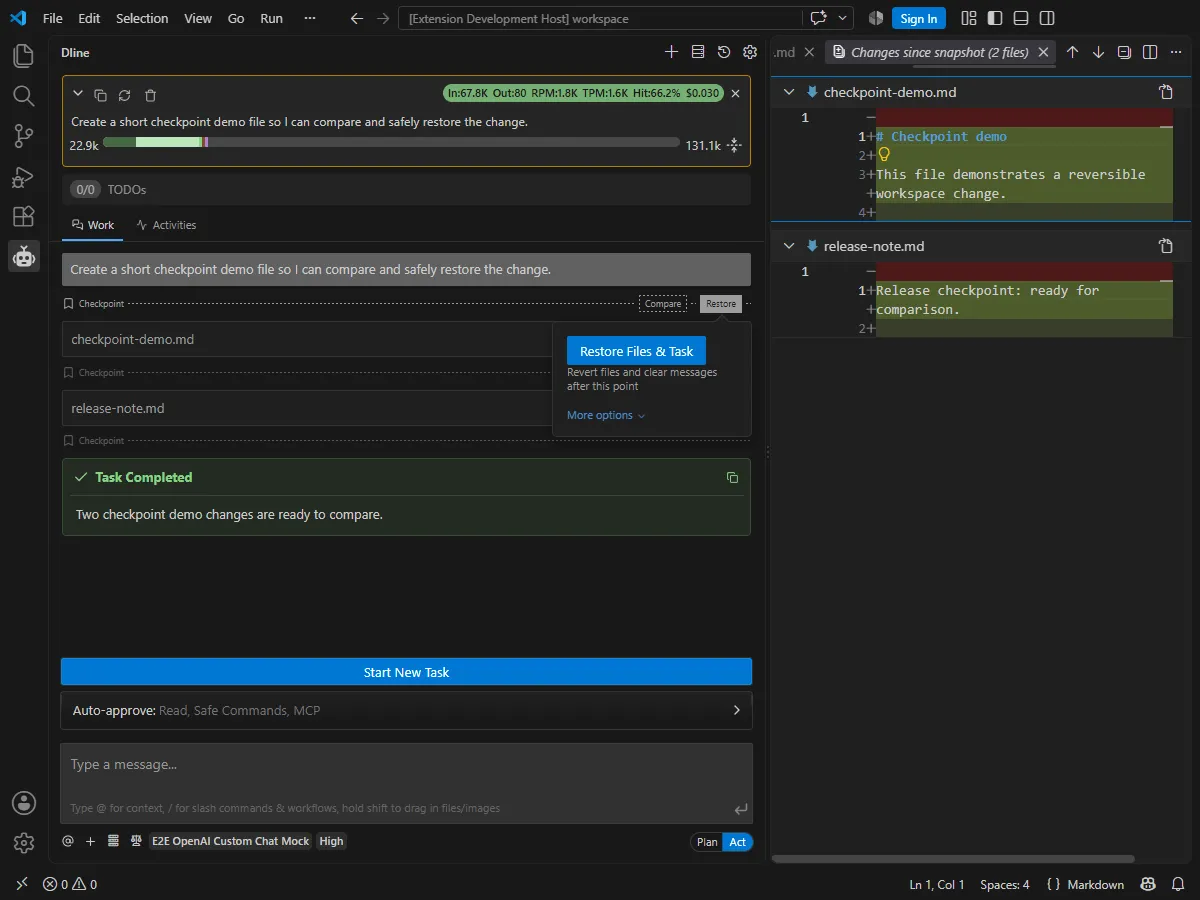
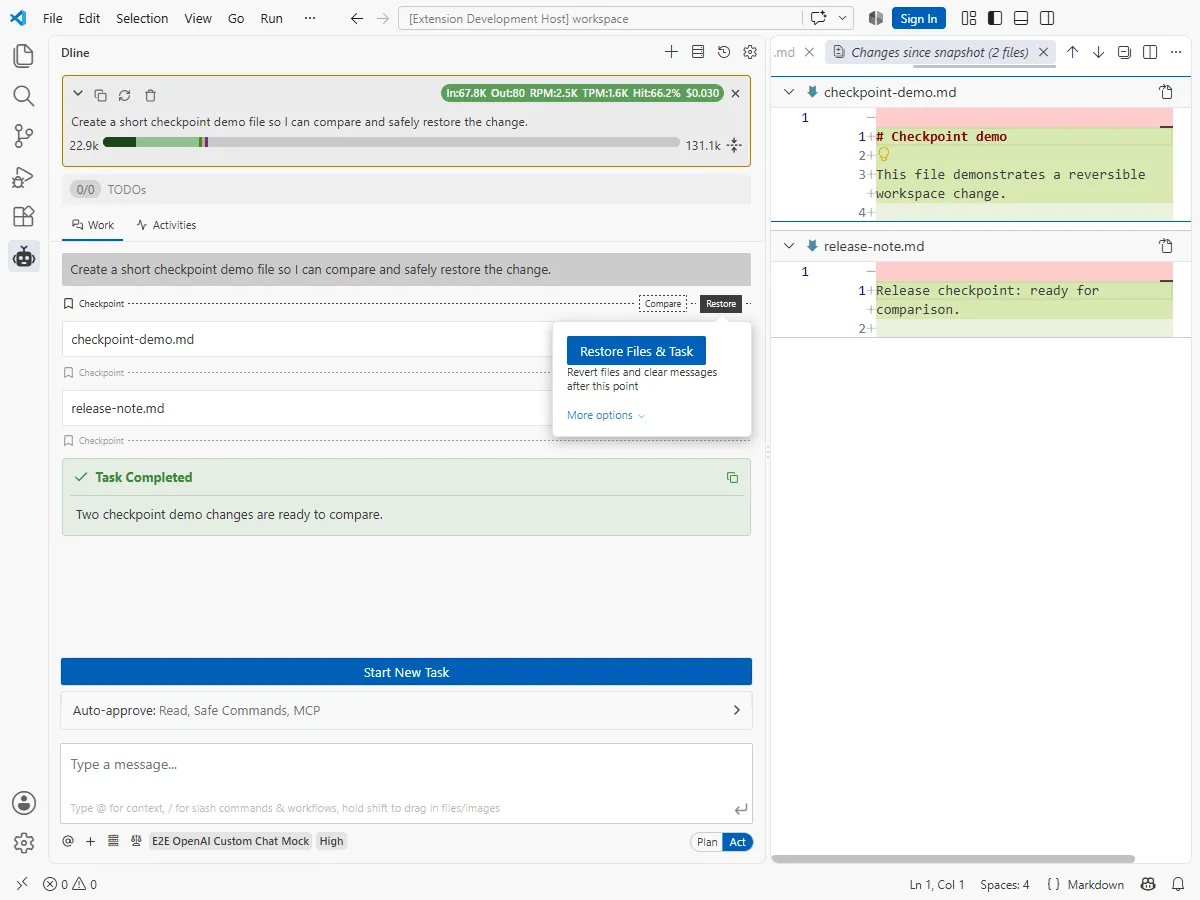
If a checkpoint has no file snapshot, or it was created by context compaction (shown as “Compaction checkpoint”), the menu offers only Restore Task Only.
After files are restored successfully, the marker reads Checkpoint (restored) and its Restore Files Only button is disabled. The state clears when a new checkpoint is saved.
Restore rules
Section titled “Restore rules”Restoring files does not simply rewind the whole project. The scope depends on which files this task changed:
- When this task edited files with editing tools: only those files are restored. Files present in the checkpoint get their content back; files absent from it (for example files created later) are deleted. Other files are left alone.
- When this task has no recorded file edits (for example it only changed the workspace through commands): Dline runs
git reset --hardin the shadow repository, so every file tracked by the snapshot returns to the checkpoint. This can affect more of the workspace. - When the file restore fails during Restore Files & Task: the conversation is still restored, and the file restore error is shown.
Editing a sent message
Section titled “Editing a sent message”Click a message you sent earlier to edit it. After you change the text, two buttons appear:
- Restore Chat rewinds the conversation to just before this message and continues the task with the edited text. Pressing
Enterin the edit box does the same;Esccancels editing. - Restore All restores both the conversation and the workspace files to the checkpoint. In the current version only Restore Chat sends the edited text.
If the text is unchanged, neither button restores anything. Restore All is hidden while the task header shows a checkpoint error.
Limits and common messages
Section titled “Limits and common messages”| Situation | Behavior |
|---|---|
| No workspace is open | “No workspace detected. Please open Dline in a workspace to use checkpoints.” |
| The workspace root is exactly your home, Desktop, Documents, or Downloads folder | Checkpoints are unavailable (“Cannot use checkpoints in … directory”); open a specific project folder instead |
| Multi-root workspace | “Checkpoints are not currently supported in multi-root workspaces.” The task creates no checkpoints |
| Slow initialization | After 15 seconds Dline suggests the repository may be large; if it never finishes, it reports an initialization timeout |
| Initialization failed | The task header shows the error with Retry Checkpoints, and in some cases Disable Checkpoints |
Storage and cleanup
Section titled “Storage and cleanup”- Deleting a single task removes only that task’s folder; the workspace’s shared shadow repository is kept for other tasks.
- Deleting the last task, or choosing Delete Everything after Delete All History in the history view, removes the whole
checkpointsfolder. Choosing Delete All Except Favorites keeps it. - There is no separate “clear checkpoints” button.
Using checkpoints with auto-approve
Section titled “Using checkpoints with auto-approve”Checkpoints give you a way back, but they do not review changes for you. If you auto-approve file edits or commands, inspect the result with View Changes or Compare when the task finishes, then decide whether to restore.