Workflows
A workflow is a step-by-step Markdown procedure for work you repeat in the same order every time, such as deploying, cutting a release, or opening a PR. When you invoke a workflow, its full text is injected into the current task as explicit instructions.
How it differs from Rules: rules apply to every request, while a workflow is injected once, when you invoke it.
Where workflows come from
Section titled “Where workflows come from”| Source | Location | Notes |
|---|---|---|
| Workspace | <workspace>/.agents/workflows/ | Applies to that workspace only |
| Workspace (legacy) | <workspace>/.clinerules/workflows/ | Read for compatibility; move files to .agents/workflows/ |
| Global | <documents-root>/workflows/ | Applies to every workspace |
| Remote | Pushed by your organization’s remote configuration | Managed by the organization and may be always enabled |
- Directories are scanned recursively, so files in subfolders are found too.
<documents-root>defaults to adlinefolder inside your operating system’s Documents folder and can be overridden with theDLINE_DOCS_DIRenvironment variable.
Writing a workflow
Section titled “Writing a workflow”---name: release-reviewdescription: Check changes, tests, and the changelog before a release---
# Release review
1. Use `git log` to list commits since the last version tag.2. Run `npm run check-types` and `npm run test:run`, and record any failures.3. Check that the CHANGELOG covers every user-facing change.4. Summarize the risks and conclude whether the release can ship.- The command name comes from the file name without its
.mdor.txtextension, so the file above should be namedrelease-review.md. - Frontmatter is optional.
namesets the display name in the slash menu; keep it equal to the file name, otherwise the name shown in the menu cannot be used to invoke the workflow. - The menu description comes from
description. Without it, Dline uses the first line of the body (without the#heading marker). Descriptions longer than 80 characters are truncated.
Invoking a workflow
Section titled “Invoking a workflow”Type / in the input box to see every enabled workflow in the menu, or type the command directly:
/workflow:release-review Only check the packages/api folder this time/workflow:<name>is the standard form. For compatibility,/<name>and/<name>.mdalso work.- The slash command itself is removed from the message; the rest of the message is sent as usual.
- Only one slash command is processed per message: the first one that matches.
- When names collide, workspace wins over global, and global wins over remote.
With the Standard prompt profile, the model can also load an enabled workflow by name with the load_workflow tool. See the Tools reference.
Managing workflows
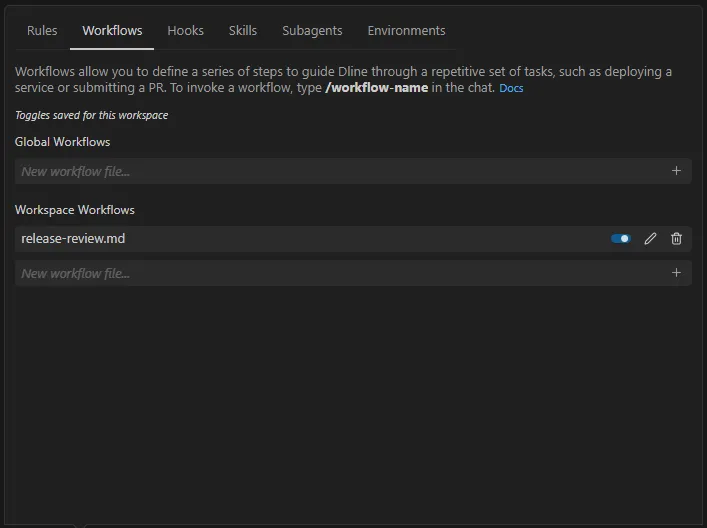
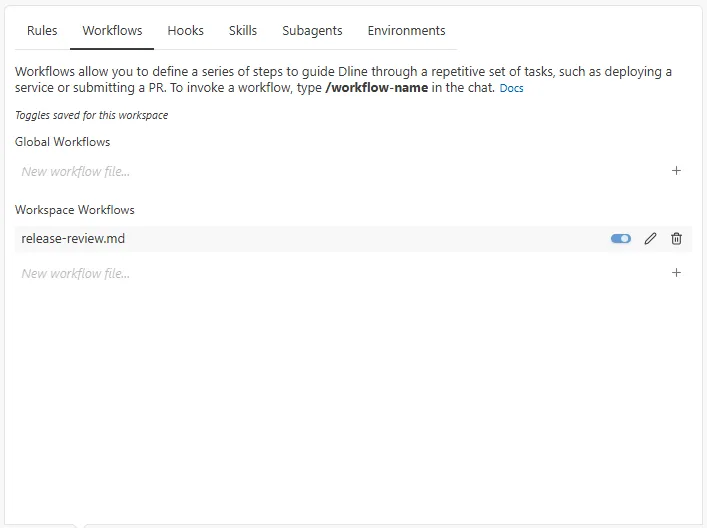
Section titled “Managing workflows”Select the scale icon in the toolbar below the input box (tooltip Manage Dline Rules & Workflows) and switch to the Workflows tab:
- Workflows are grouped into global and workspace sections, and every file has its own toggle. A disabled workflow does not appear in the slash menu and cannot be invoked.
- Toggles are saved with the same scope as rules: the panel shows Toggles saved for this task only or Toggles saved for this workspace.
- Remote workflows from your organization are announced by a notice at the top of the panel.