

Rules
Rules are plain-text or Markdown files. When a rule is enabled, its content is added to Dline’s system prompt. Use rules for coding standards, project conventions, architectural constraints, and other instructions every task should follow.
Rule sources
Section titled “Rule sources”| Source | Location | Notes |
|---|---|---|
| Workspace rules | <workspace>/.agents/rules/ | Files in the directory are read recursively; applies to that workspace only |
| Global rules | <documents-root>/rules/ | Applies to every workspace |
| Cursor rules | .cursorrules at the workspace root and .mdc files under .cursor/rules/ | Read for compatibility |
| Windsurf rules | .windsurfrules at the workspace root | Read for compatibility |
AGENTS.md | AGENTS.md at the workspace root | When the root file exists and is enabled, AGENTS.md files in subdirectories are also collected; they share the root file’s toggle |
By default, <documents-root> is the dline folder inside the operating system’s Documents directory. When the DLINE_DOCS_DIR environment variable is set, its value is used directly as <documents-root>.
How rules are combined
Section titled “How rules are combined”Enabled rules are concatenated into the system prompt in this order: global rules, workspace rules, Cursor rules, Windsurf rules, AGENTS.md.
- Files in one directory are read in the order the file system returns them. Prefixes such as
01-help you organize files but do not set order or priority. - When rules conflict, Dline does not resolve the conflict; the model sees both. Avoid writing rules that contradict each other.
- Rule content uses context-window space, so keep rules concise. One topic per file makes each rule easy to toggle on its own.
Managing rules
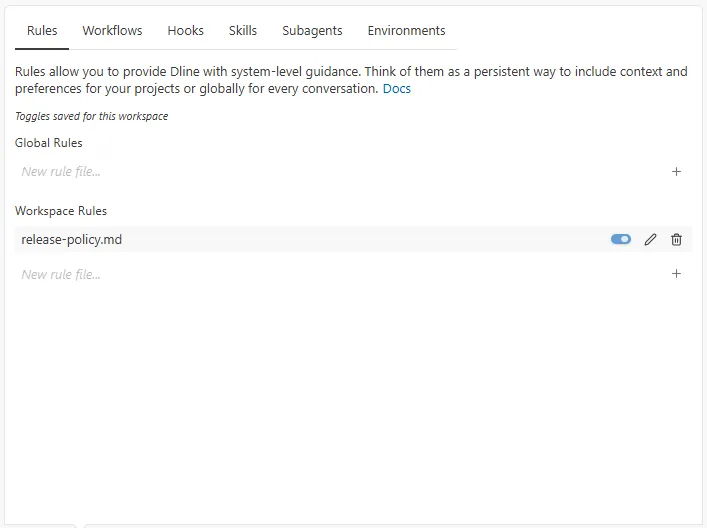
Section titled “Managing rules”Select the scale icon in the toolbar below the input box (tooltip Manage Dline Rules & Workflows) to open the capabilities panel, then switch to the Rules tab:
- Rule files are listed in groups such as Global Rules and Workspace Rules, each with its own toggle. Disabled rules are not loaded.
- Under Global Rules, choose New rule file… and enter a file name to create a global rule. A name without an extension gets
.md;.txtis also accepted. - The panel shows where toggles are saved: Toggles saved for this task only or Toggles saved for this workspace.
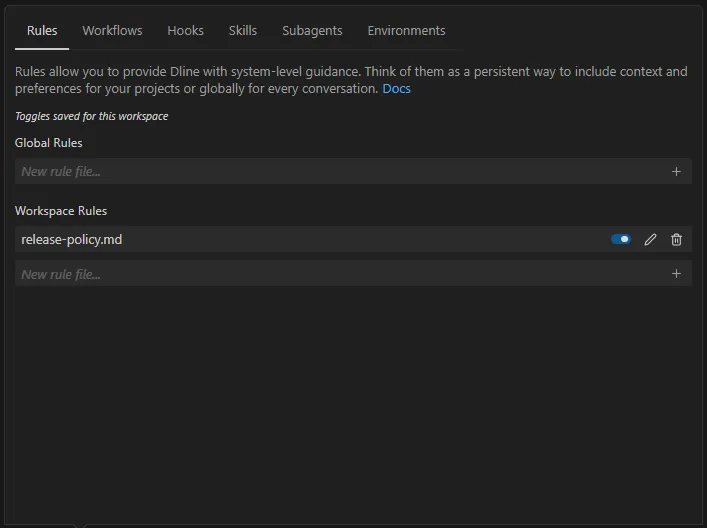
You can also type /newrule in the input box. Dline then creates a new Markdown rule file under .agents/rules/ based on the current conversation, without overwriting existing files.
Conditional rules
Section titled “Conditional rules”Workspace and global rules can declare paths in YAML frontmatter at the top of the file so that the rule applies only when the current context involves matching files:
---paths:  - "src/components/**"  - "**/*.tsx"---
# Frontend component conventions
- Write components as functions.
Matching behavior:
- Only the
pathskey is supported; other keys are ignored. pathsis an array of glob strings. Patterns are relative to the workspace root, use/as the separator, and also match files whose names start with.. The rule applies when any pattern matches any candidate path.- A rule without frontmatter always applies; a rule with
paths: []never applies. - If
pathsis not an array of strings, the condition is ignored and the rule applies. If the YAML cannot be parsed, the rule is loaded together with the raw frontmatter. - To match every file under a directory, write
dir/**, notdir/.
Candidate paths come from the following places, deduplicated and capped at 100:
- paths mentioned in the most recent user message;
- open and visible editor tabs;
- files edited or deleted in the current task;
- paths in pending tool requests.
As a result, a conditional rule applies whenever a matching file is open, not only while it is being edited.
Troubleshooting
Section titled “Troubleshooting”- A rule has no effect: make sure its toggle is on. For a conditional rule, also make sure an open file or a path in your message matches
paths. - Raw frontmatter appears in the rule content: the YAML could not be parsed, or the
---delimiters are incomplete.