

Terminal environment (bashrc.yml)
Before Dline runs a command, it reads .agents/bashrc.yml in the workspace root. The file prepares environment variables, loads startup scripts, and runs the commands you specify before and after each command. Typical uses are activating a Python virtual environment, loading the Visual Studio developer environment (vcvars64.bat), and setting proxy or toolchain paths.
Editing in the UI
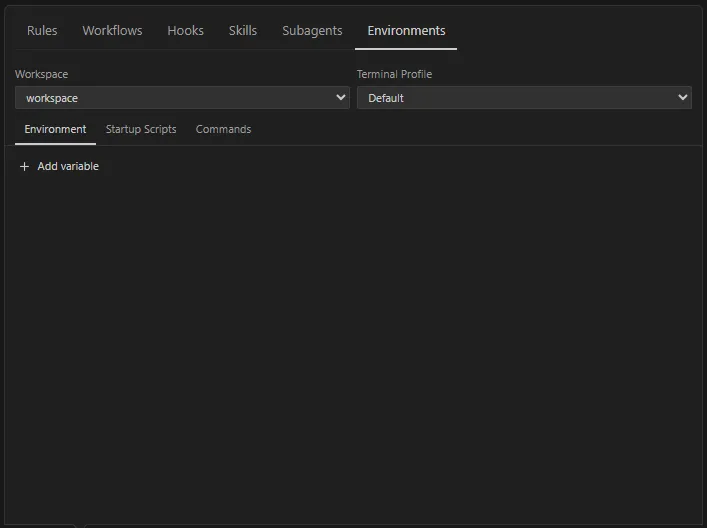
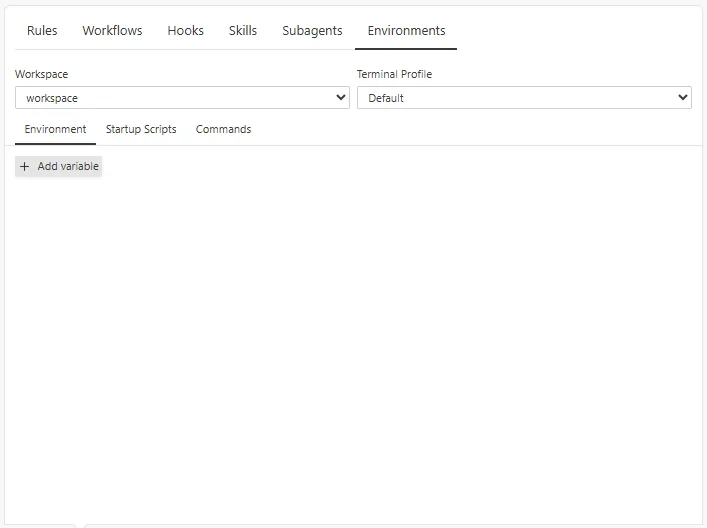
Section titled “Editing in the UI”Select the scale icon in the toolbar below the input box (tooltip Manage Dline Rules & Workflows) and switch to the Environments tab:
- Pick a workspace in Workspace (a multi-root workspace lists several).
- Pick the terminal profile to configure in Terminal Profile. It defaults to Default Terminal Profile from settings.
- Edit the three sub-tabs:
- Environment: add environment variables. Check Unset to remove the variable from the command environment.
- Startup Scripts: add startup script paths.
- Commands: choose a Python Env Manager (None, Conda, or venv) and edit Pre Commands and Post Command.
- Changes are saved to
.agents/bashrc.ymlabout 0.35 seconds after you stop typing; the status shows Saving… and then Saved. When you edit the file directly, the panel picks up the change within about a second and shows Synced.
The panel only updates the selected terminal profile for the current platform; other platforms and profiles stay unchanged. If the file was changed externally before a save, the save is rejected so the external edit is not overwritten; reload and edit again.
Python environments
Section titled “Python environments”- Conda lists the Conda environments on your machine and adds
conda activate <name>as a pre command. - venv defaults to
${workspaceFolder}/.venv(${workspaceFolder}\.venvon Windows) and generates the activation command for your terminal:- bash, zsh, and similar:
. '<path>/bin/activate' - Command Prompt:
call "<path>\Scripts\activate.bat" - PowerShell:
& "<path>\Scripts\Activate.ps1"
- bash, zsh, and similar:
File format
Section titled “File format”version: 1environment: PIP_INDEX_URL: https://mirrors.example.com/pypi/simpleplatforms: win32: environment: PYTHONUTF8: "1" profiles: default: environment: TOOLCHAIN_HOME: ${workspaceFolder}\tools LEGACY_FLAG: null startupScripts: - C:\Program Files\Microsoft Visual Studio\2022\Community\VC\Auxiliary\Build\vcvars64.bat preCommands: - '& "${workspaceFolder}\.venv\Scripts\Activate.ps1"' postCommand: Write-Output done linux: profiles: bash: startupScripts: - ./scripts/dev-env.sh preCommands: - conda activate myenv| Field | Description |
|---|---|
version | Required and must be 1 |
environment | Environment variables shared by every platform |
platforms.<platform> | The platform name must be win32, linux, or darwin |
platforms.<platform>.environment | Environment variables for that platform |
platforms.<platform>.profiles.<profile ID> | Settings for one terminal profile, which can contain the four fields below |
environment | Environment variables for that profile. Values can be strings, numbers, or booleans; null removes the variable |
startupScripts | A list of startup script paths |
preCommands | A list of commands run before every command |
postCommand | One command run after every command |
- An unlisted field, an unknown platform name, or a value of the wrong type makes the whole file invalid. Dline logs the error and runs the command without any project configuration.
- The three levels of environment variables are merged in the order shared, platform, profile; later levels override earlier ones.
Terminal profile IDs
Section titled “Terminal profile IDs”| Platform | Available IDs |
|---|---|
| Windows | default (Windows PowerShell), powershell-7, powershell-legacy, cmd, wsl-bash, git-bash |
| macOS | default (zsh), zsh, bash |
| Linux | default (bash), bash, zsh, dash |
default is first resolved to a concrete profile for the platform (powershell on Windows, zsh on macOS, bash on Linux); if no entry exists for that ID, Dline looks up default itself. The profile Dline uses is set by Default Terminal Profile in Settings → Terminal.
Variable substitution
Section titled “Variable substitution”The values of environment, startupScripts, preCommands, and postCommand can use:
${workspaceFolder}: the root of the workspace that contains the command;${env:NAME}: the value of the environment variableNAMEin the Dline process, or an empty string if it is not set.
Relative startup script paths are resolved against the workspace root.
How it runs
Section titled “How it runs”-
Startup scripts: in a VS Code terminal they are loaded once, when the terminal is created; background commands load them before every command. Supported script types depend on the terminal:
- PowerShell:
.ps1, plus.bat/.cmd(environment variables set by the script are carried back into PowerShell); - Command Prompt:
.bat,.cmd; - bash, zsh, and similar:
.bashrc,.bash,.sh.
A script of an unsupported type is not run and is recorded as a failure.
- PowerShell:
-
Pre commands run before every command and the post command runs after it. Their output is discarded.
-
A failing startup script, pre command, or post command does not stop your command; the failure is written to the Dline log with the
[ShellEnvironment]prefix. -
The exit code is always the exit code of your command, regardless of the post command.
-
The configuration only applies to commands inside a workspace. In a multi-root workspace, the
.agents/bashrc.ymlof the workspace that contains the command’s directory is used.