

Auto-Approve
By default Dline asks for your approval before actions that can have an effect. Auto-approve lets you allow certain categories of actions to reduce interruptions.
Where to find it
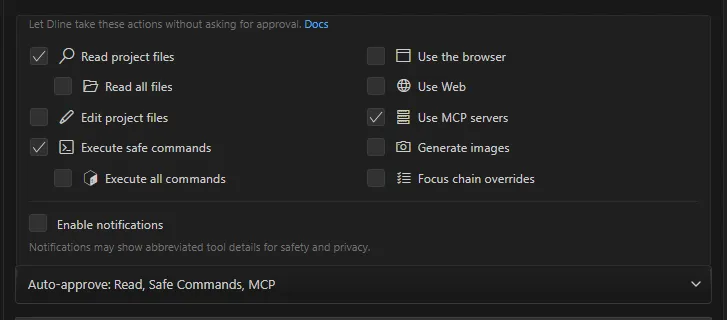
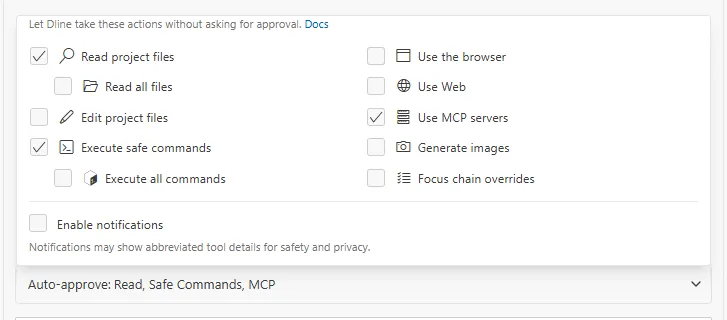
Section titled “Where to find it”The Auto-approve: bar sits directly above the chat input. Clicking it opens a menu that begins with “Let Dline take these actions without asking for approval.”
Categories and defaults
Section titled “Categories and defaults”| Option | Actions covered | Default |
|---|---|---|
| Read project files | Reading, listing, and searching files in the workspace | On |
| └ Read all files | Reading files outside the workspace | Off |
| Edit project files | Creating and editing files in the workspace | Off |
| └ Edit all files | Creating and editing files outside the workspace | Off |
| Execute safe commands | Commands the model marks as safe | On |
| └ Execute all commands | Every command | Off |
| Use the browser | Browser automation | Off |
| Use Web | Web search and web fetch (web_search, web_fetch) | Off |
| Use MCP servers | MCP tools | On |
| Generate images | Image generation; see Image generation | Off |
| Focus chain overrides | Updates to the Focus Chain to-do list | Off |
In the menu, options marked └ belong to the row above: checking one also checks its parent, and unchecking the parent also unchecks it.
How “safe commands” are decided
Section titled “How “safe commands” are decided”When Dline runs a command, the model must declare requires_approval for it: true for commands that can have an effect and false for non-destructive ones. Execute safe commands allows the commands declared false.
That is the model’s judgement; Dline does not parse the command text to confirm it is safe. For hard limits, use the command permission rules below.
Command permission rules
Section titled “Command permission rules”The DLINE_COMMAND_PERMISSIONS environment variable configures allow and deny rules (glob patterns) that are checked before a command runs, even in YOLO mode:
{"allow": ["npm test", "git status"], "deny": ["rm *"], "allowRedirects": false}- When the variable is not set, no extra restriction applies;
denyrules take precedence; onceallowis configured, commands that match no rule are denied;- commands with redirects (such as
>or>>) are allowed only whenallowRedirectsistrue; - commands chained with
&&,||,|, or;are split and checked segment by segment, and every segment must pass.
Notifications
Section titled “Notifications”Enable notifications at the bottom of the menu is off by default and notes “Notifications may show abbreviated tool details for safety and privacy.” When it is on, Dline sends system notifications when:
- an action needs your approval;
- a task completes;
- Dline asks you a question;
- an auto-approved command has been running for more than 30 seconds.
Whether notifications appear depends on your operating system settings.
YOLO mode
Section titled “YOLO mode”Yolo Mode is in the experimental group under Settings → Features and is off by default. Its description reads: “Execute tasks without user’s confirmation. Auto-switches from Plan to Act mode and disables the ask question tool. Use with extreme caution.”
When it is on:
- the bar above the input shows Auto-approve: YOLO, and you turn it off in Settings;
- after creating a plan in Plan mode, Dline switches to Act mode automatically;
- when Dline asks you a question, it does not stop to wait for an answer.
How it relates to other settings
Section titled “How it relates to other settings”- MCP tool-level auto-approve: in MCP server management you can turn on Auto-approve for a single tool, or Auto-approve all tools for a server. Workspace server tools start unapproved, and your choice for them applies only to the current workspace. These are separate from Use MCP servers in the chat; see MCP overview.
- .agentignore: an action denied by
.agentignorefails even when auto-approved, and the chat shows why. - Subagents: launching a subagent uses the Read project files permission, and tools inside the subagent do not ask you for approval one by one; see Subagents.
- Inside vs outside the workspace: decided from the paths a tool declares or confirms. It does not mean a command or MCP tool cannot reach resources outside the workspace.
Recommendations
Section titled “Recommendations”- Start with the defaults and allow only categories you approve often and whose risk you accept;
- keep checkpoints on when you allow Edit project files, and review the result with View Changes when the task ends;
- be careful with Execute all commands, and pair it with
DLINE_COMMAND_PERMISSIONSwhen you need limits.