

Subagents
A subagent is an independent worker launched by the main task. Each subagent has its own context and returns only its final findings, so the reading and searching it does never fills the main task’s context.
Enabling and concurrency
Section titled “Enabling and concurrency”Turning a named subagent on or off follows the same task, workspace, and global layers as rules and skills. See Capability toggle scopes.
- Subagents are on by default. Turn them off with the Subagents switch in the Agent group under Settings → Features.
- Max Parallel Subagents, below the switch, sets how many subagents run at once: 1–64, default 64.
- One batch delegation can contain at most 32 subagents; anything beyond the concurrency limit waits its turn.
- Without an explicit timeout, each subagent runs for at most 1200 seconds (20 minutes).
How Dline delegates
Section titled “How Dline delegates”Dline has two delegation tools:
use_subagentruns one default or named subagent;use_subagentsruns 1–32 subagents in one call, and each item can set its own named agent, Profile, and timeout.
Dline decides on its own whether to delegate, and you can also ask explicitly, for example:
Use subagents to investigate the auth flow, where the database models are defined, and the test setup. Read only; do not change files.Give each subagent one clear question. Run them in parallel only when the questions are independent; the main task then checks the evidence and combines the findings.
The default subagent (default.yml)
Section titled “The default subagent (default.yml)”The built-in default subagent can use only these tools:
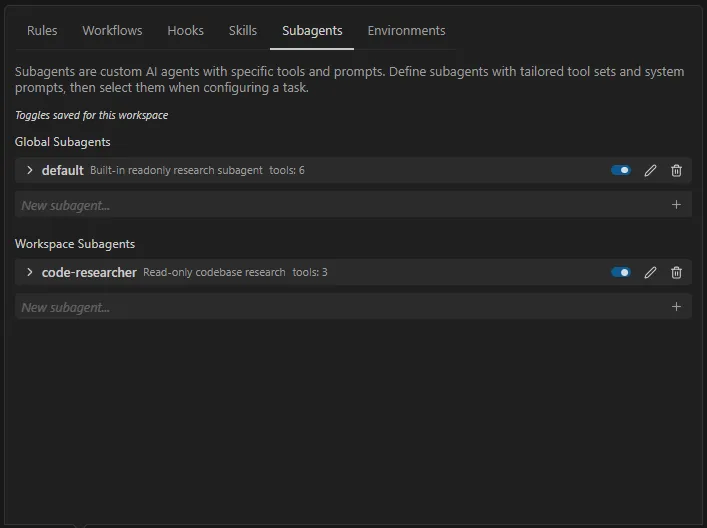
read_file, list_files, search_files, list_code_definition_names, load_skill, plus attempt_completion to return its result.
It cannot run commands, write files, go online, use the browser, or use MCP. When you need those, use a named subagent and grant them explicitly.
When the global subagents folder contains no .yml or .yaml file, Dline creates an editable <documents-root>/subagents/default.yml with the default configuration above. An existing file is never overwritten.
Named subagents (agent YAML)
Section titled “Named subagents (agent YAML)”A named subagent is a YAML file with frontmatter. Each file defines one subagent; the file name is up to you (for example code-researcher.yml), and agents are matched by the name field, case-insensitively:
| Location | Scope |
|---|---|
.agents/subagents/ | Current workspace |
<documents-root>/subagents/ | Global (<documents-root> defaults to dline inside your system Documents folder and can be overridden with DLINE_DOCS_DIR) |
The extension can be .yml or .yaml. When the workspace and the global folder define an agent with the same name, the workspace one wins.
---name: code-researcherdescription: Read-only codebase researchprofile: "Fast Research"tools: - read_file - list_files - search_files - list_code_definition_namesskills: []maxOutputTokens: 0.05---Trace the requested code paths without changing files. Return findings with file paths, evidence, and open questions.| Field | Required | Description |
|---|---|---|
name | Yes | Agent name |
description | Yes | What the agent is for |
| Body | Yes | The content after the frontmatter is the subagent’s prompt and must not be empty |
profile | No | Which API Profile to use; see below |
tools | No | Allowed tools, as an array or a comma-separated string. Omitted or empty means the default tool set |
skills | No | Visible skills. Omitted means all available skills; [] means none |
maxOutputTokens | No | Token budget for the final result; see below |
A file is skipped and logged when a required field is missing, the frontmatter is malformed, the body is empty, a tool name is unknown or blank, or the output budget is invalid. Use profile to choose a model; other keys such as modelId have no effect.
Question, plan, and task-ending tools (except attempt_completion) and use_subagent / use_subagents are removed from tools automatically: a subagent has no user to answer questions and cannot delegate further. attempt_completion is always granted.
Named subagents can request tools such as writing files, running commands, web access, MCP, or image generation through tools; those tools are still subject to their feature switches and permissions.
Managing them in the UI
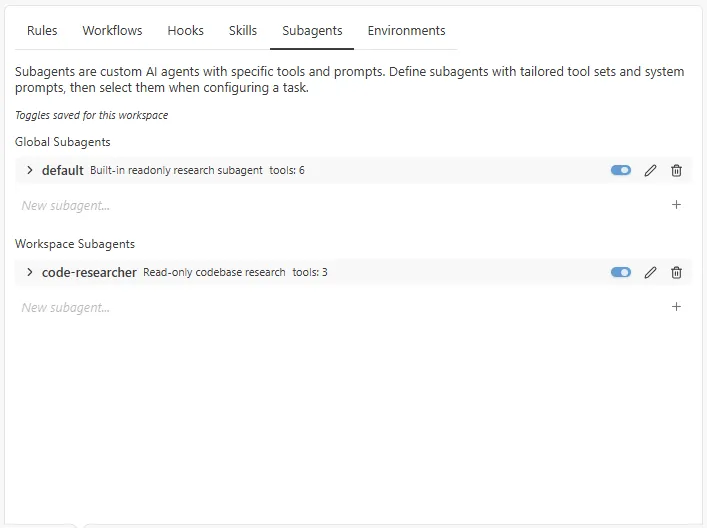
Section titled “Managing them in the UI”The Subagents tab of the Manage Dline Rules & Workflows panel shows Global Subagents and Workspace Subagents, each with a New subagent… button. Each row can be enabled or disabled, edited or deleted, assigned a Profile, and given per-tool checkboxes (required tools always stay checked).
Choosing a Profile
Section titled “Choosing a Profile”| Situation | Profile used |
|---|---|
profile names an enabled Profile with the Subagents usage checked | That Profile’s model and thinking configuration; the main task’s task-level thinking setting does not apply |
profile is omitted, or names a Profile that is unavailable, disabled, or lacks the Subagents usage | Falls back to the main task’s Act Profile (even while the main task is in Plan mode) |
An item in a batch delegation sets its own profile | Overrides the YAML value; if that Profile is invalid, the item is rejected instead of falling back |
The subagent is allowed to use generate_image | It must name a valid Profile explicitly, or it fails |
To create Profiles and set their usages, see Model configuration.
Output budget for the final result
Section titled “Output budget for the final result”maxOutputTokens limits the size of the final result the subagent returns to the main task, measured in tokens:
- when unset, it defaults to 5% of the main task’s remaining context at launch;
- a decimal between
0and1is a ratio, for example0.05; - a positive integer is a fixed token count, for example
10240; - the effective budget is at least 512 tokens, even if less context remains in the main task.
The budget is written into the subagent’s prompt, and anything beyond it is truncated when the result is returned. It limits only the final result, not the individual requests the subagent makes along the way.
Approval
Section titled “Approval”- Launching a subagent uses the Read project files auto-approve permission.
- Every tool call inside a subagent is checked against its tool allowlist and the approval policy; you are not prompted for each call. A tool that needs manual approval fails inside a subagent instead of waiting for you.
- Command execution still applies command permissions and directory-access checks.
Following along in the chat
Section titled “Following along in the chat”When Dline delegates, the chat shows “Dline wants to use a subagent:” or “Dline wants to use subagents:”. Each subagent gets a card with the agent name, Foreground or Background, its task, tools, and output, and its status. Cards offer Cancel, Cancel all, and finish or retry controls where applicable.
Run statistics include tool calls, elapsed time, tokens, and cost; subagent usage counts toward the main task’s totals.
How this differs from spawn_task
Section titled “How this differs from spawn_task”spawn_task is a separate tool that creates an independent new task; it is not part of the subagent feature. Subagents cannot delegate to further subagents.